How to connect to the room
1.
Use the Logitech Swytch option when you would prefer to run the meeting off your laptop deploying any meeting platform.
Insert Logitech Swytch cable into your device using either port.
USB-C will charge your laptop, USB-A will not.
USB-C will charge your laptop, USB-A will not.

2.
Once you start your meeting, the Logitech Swytch should be automatically selected as the default audio device.
If not, go onto step 3.
If not, go onto step 3.
3.
In Microsoft Teams, click on the three dots in the top right hand corner and click on settings in the drop down menu. Navigate to "Devices", and ensure Logitech Swytch is selected for Speaker, Microphone and Camera.
In Zoom, Click on the up arrow next to the Microphone icon in the meeting toolbar. A menu will appear where you can change your audio input/output devices and more. Ensure Logitech Swytch is selected for Speaker, Microphone and Camera.
In Zoom, Click on the up arrow next to the Microphone icon in the meeting toolbar. A menu will appear where you can change your audio input/output devices and more. Ensure Logitech Swytch is selected for Speaker, Microphone and Camera.
THE TAP CONTROLLERINVITE A ROOM TO A MEETINGJOIN A MEETING ON THE CONSOLEStart an unscheduled meeting
The Tap Controller
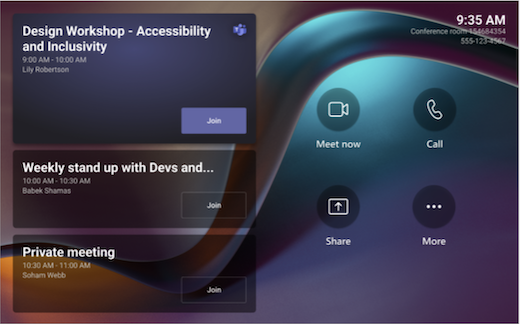
On the screen, there are a few things you can do:
1. Join an upcoming scheduled meeting by selecting Join.
Note: To get a meeting to show up on the room console, organizers should set the room as the meeting location.
2. Start a new meeting by selecting Meet.
3. Make a phone call by selecting Call and dialing a number.
When you're in a meeting, you'll have options to manage your camera and mic, share content, manage participants, invoke reactions, change layouts for the in-room display and leave the meeting.
Invite a room to a meeting
Option 1: Use Outlook to reserve a room equipped with Microsoft Teams Rooms
1. Open Outlook and go to your calendar.
2. Select New Teams Meeting in the Teams Meeting section or New Meeting, then Teams Meeting.
3. Select Room Finder in the meeting scheduler or type the conference room email address.
4. Select Show a room list and find a building or list.
5. Choose a room from the list of available rooms.
6. Complete the meeting invitation as you would for any other meeting before sending.
2. Select New Teams Meeting in the Teams Meeting section or New Meeting, then Teams Meeting.
3. Select Room Finder in the meeting scheduler or type the conference room email address.
4. Select Show a room list and find a building or list.
5. Choose a room from the list of available rooms.
6. Complete the meeting invitation as you would for any other meeting before sending.
Option 2: Use Outlook to add a room to an existing meeting
1. Open the meeting in Outlook on your personal device.
2. Add the room name (it’s on the console) under 'To', or find the room using Room finder in the meeting scheduler and send the update.
3. If the meeting is accepted, it will appear on the console.
4. Select the meeting on the console to join.
2. Add the room name (it’s on the console) under 'To', or find the room using Room finder in the meeting scheduler and send the update.
3. If the meeting is accepted, it will appear on the console.
4. Select the meeting on the console to join.
Joining a meeting on the console
Any meetings currently happening are at the top of the list. After a meeting ends, it’ll stay on the screen for a little while so you can easily join again if you need to.
If a scheduled meeting doesn’t appear on the console (or if the meeting tile shows More options ... instead of Join, you will need to invite the room or add the room on your personal device.
If a scheduled meeting doesn’t appear on the console (or if the meeting tile shows More options ... instead of Join, you will need to invite the room or add the room on your personal device.
Start an unscheduled meeting
1. Select "Meet Now" on the room console.
2. Under Type a name or number, find the people you want to invite.
3. Select people to add them to the list of invitees.
4. After all the people you want to invite are on the list, select Invite. Your meeting will begin automatically.
5. Or, if you have a URI for a meeting you want to join, select Enter a URI and type the URI for the meeting.
*Note: For now, this is only available on Skype for Business.
2. Under Type a name or number, find the people you want to invite.
3. Select people to add them to the list of invitees.
4. After all the people you want to invite are on the list, select Invite. Your meeting will begin automatically.
5. Or, if you have a URI for a meeting you want to join, select Enter a URI and type the URI for the meeting.
*Note: For now, this is only available on Skype for Business.
Rally Camera Remote Control
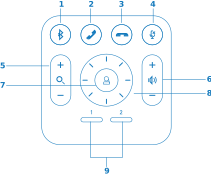
1. Bluetooth Pairing
2. Call answer
3. Call end
4. Microphone Mute
5. Zoom in/out
6. Volume Up/Down
7. Home
8. Camera pan/tilt
9. Camera Presets
2. Call answer
3. Call end
4. Microphone Mute
5. Zoom in/out
6. Volume Up/Down
7. Home
8. Camera pan/tilt
9. Camera Presets
Content Sharing
Use the HDMI to share content from your device to the display during presentations in the Boardroom.